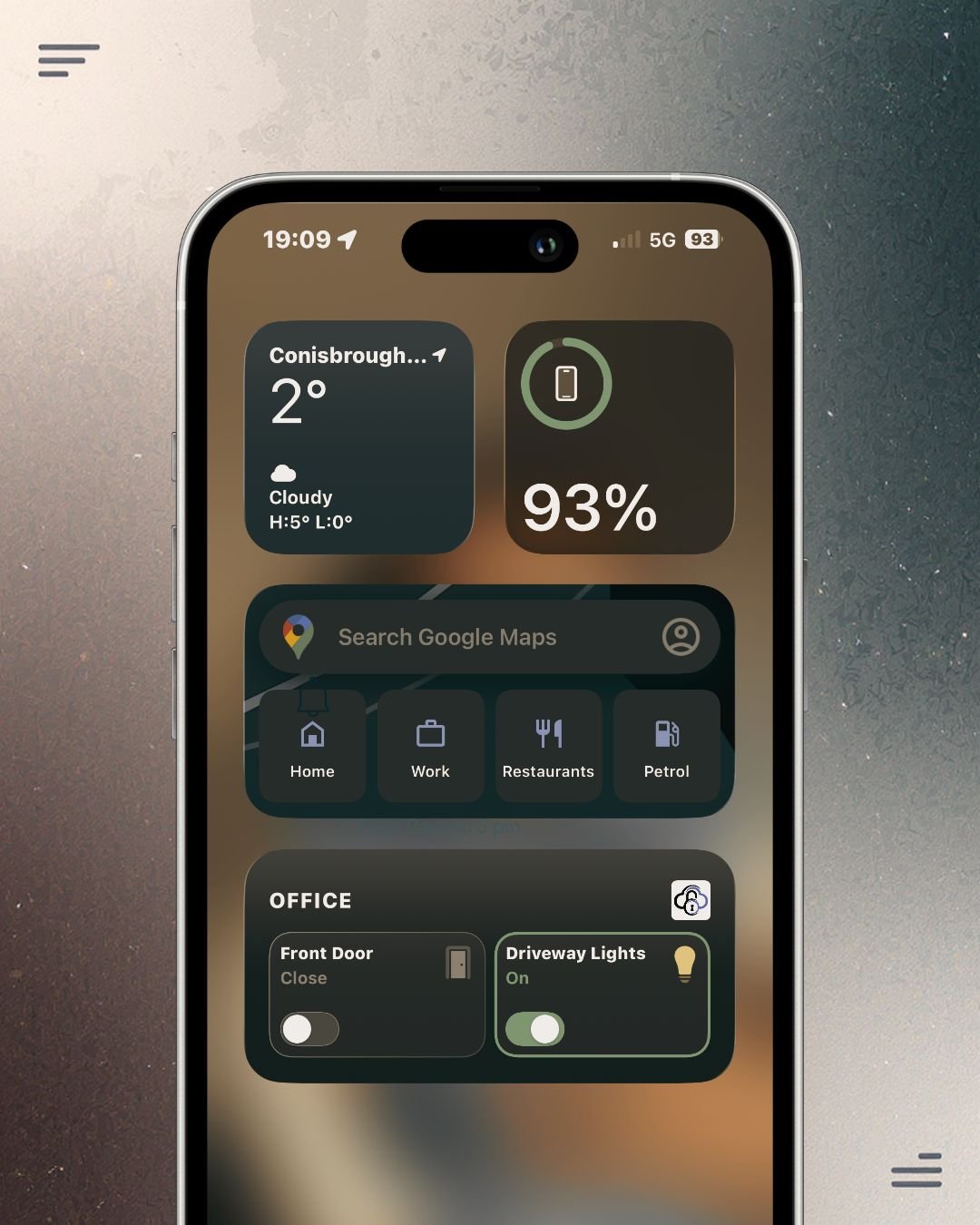
See the Complete Installation
Walkthrough in Action.
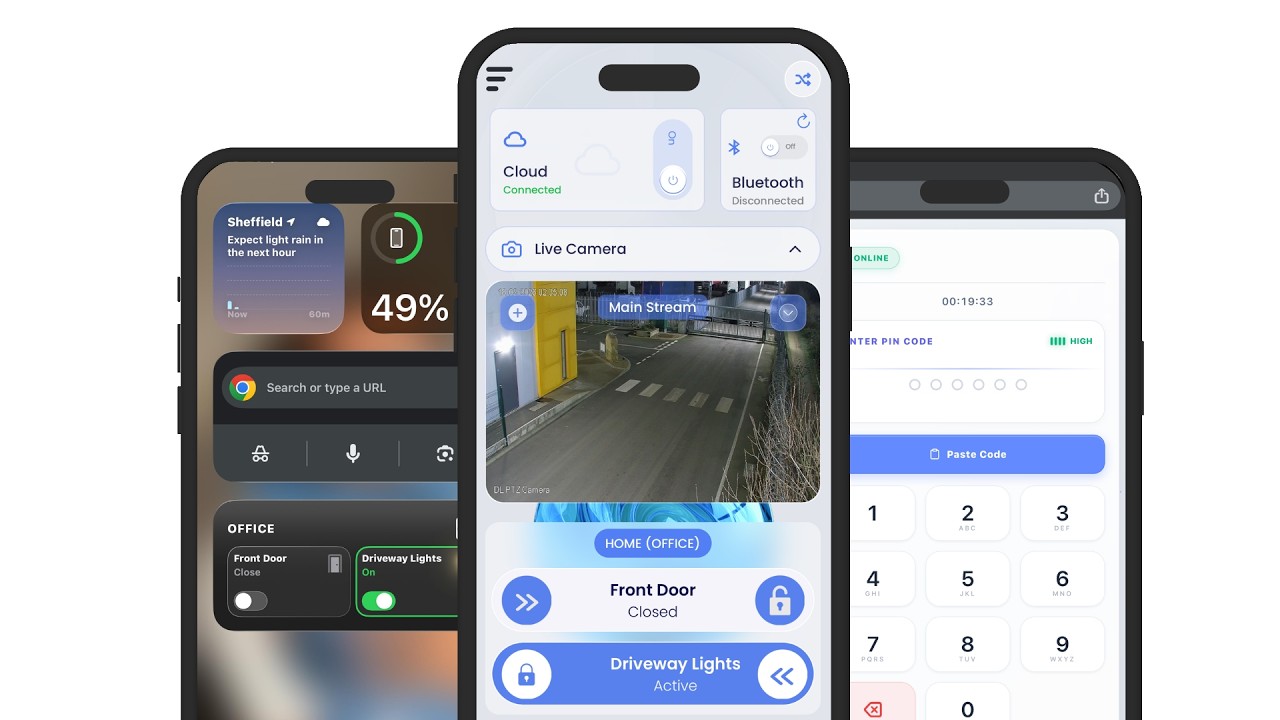
Watch the complete step-by-step installation guide — from creating your first site to enabling cloud control on any GatEvo device.
Watch on YouTube
Installer Guide
GatEvo Installer
Start Step-by-Step Guide
GatEvo Installer
Quick Guide.
A step-by-step walkthrough for setting up and cloud-connecting any GatEvo device — from first Bluetooth pairing to full remote control.
STEP 01
Create a New Site
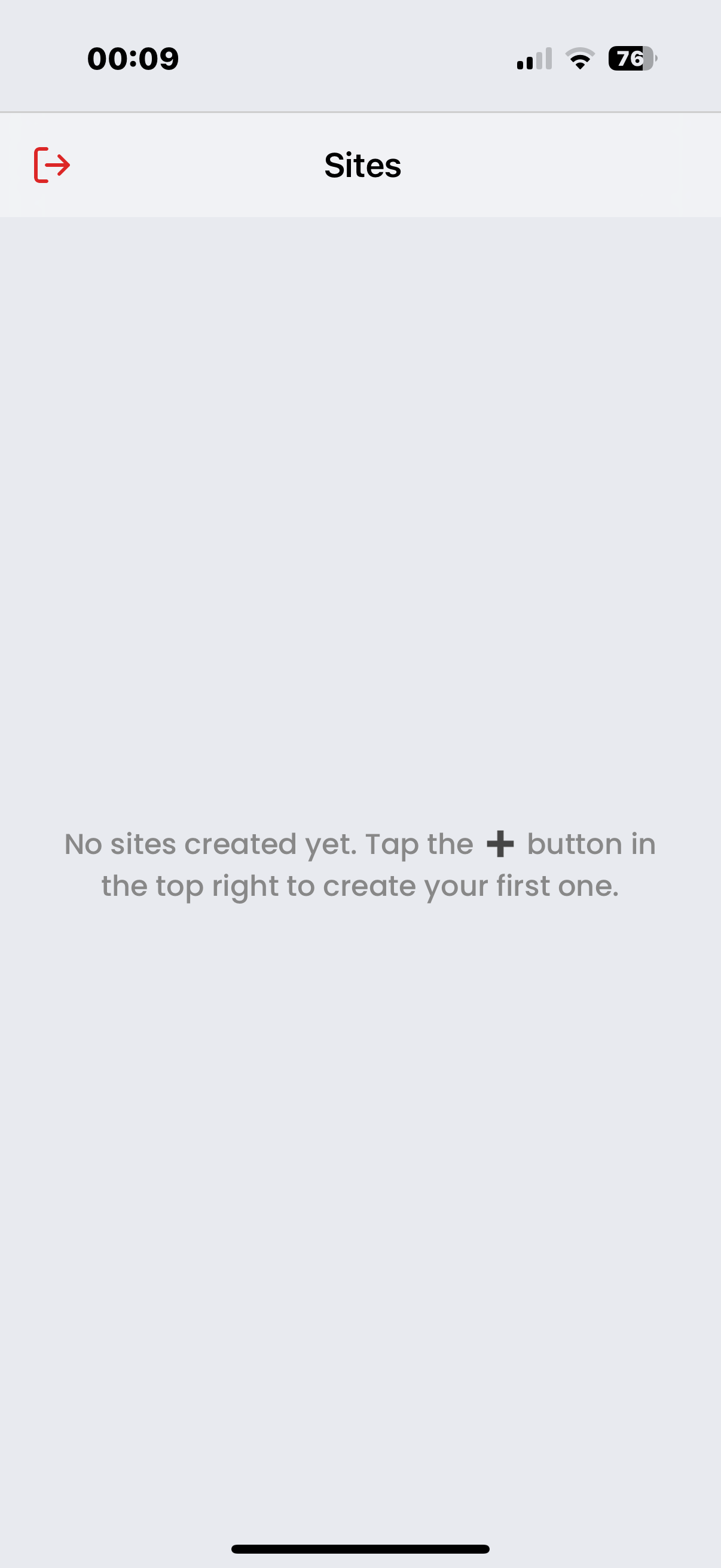
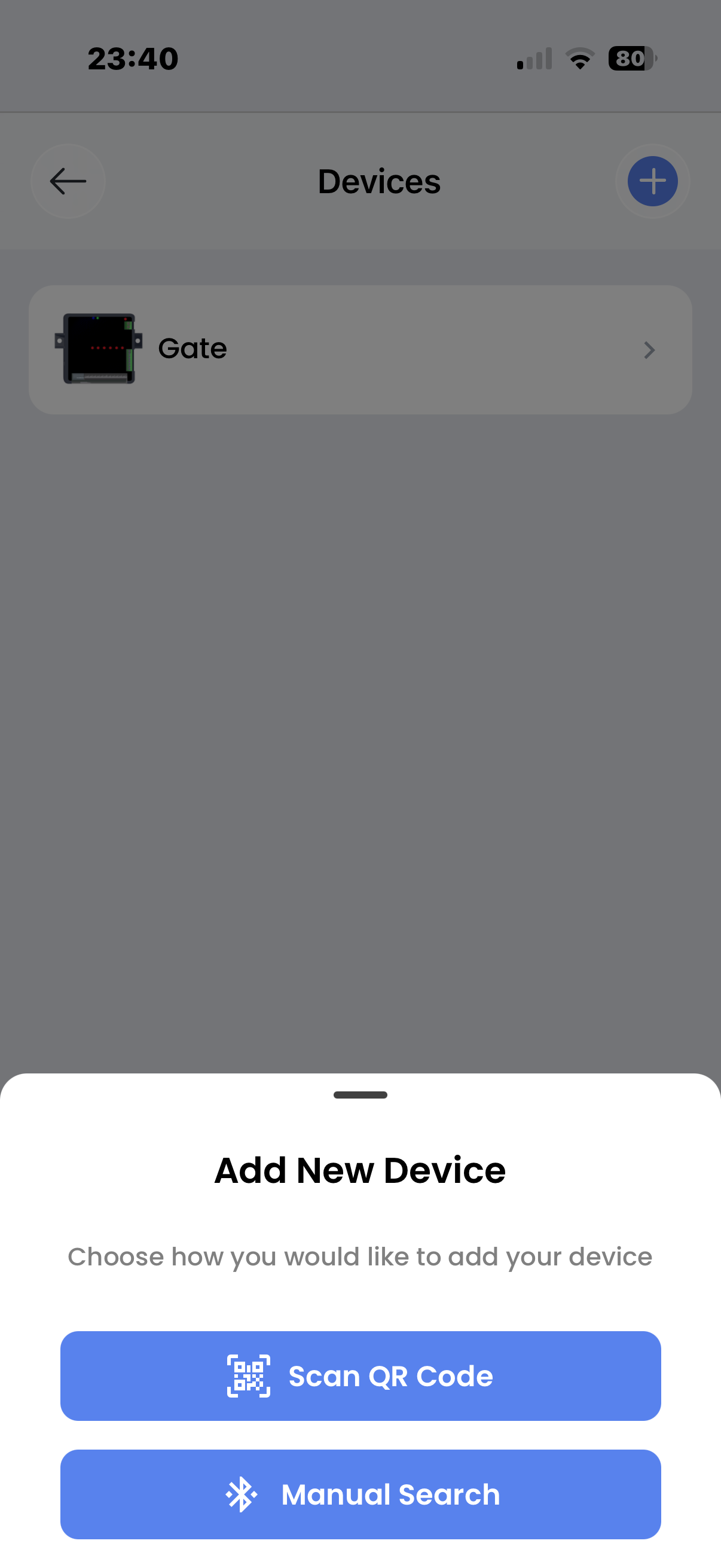
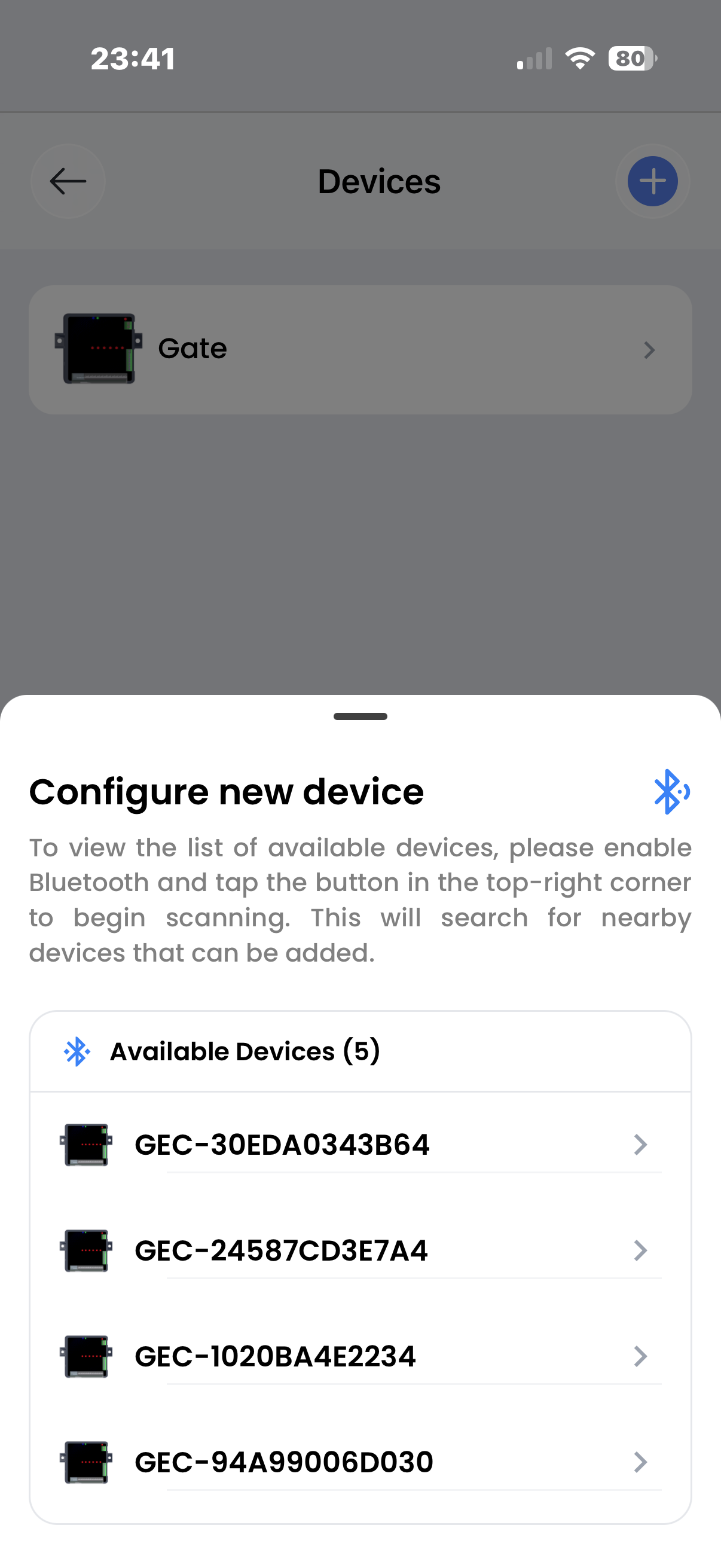
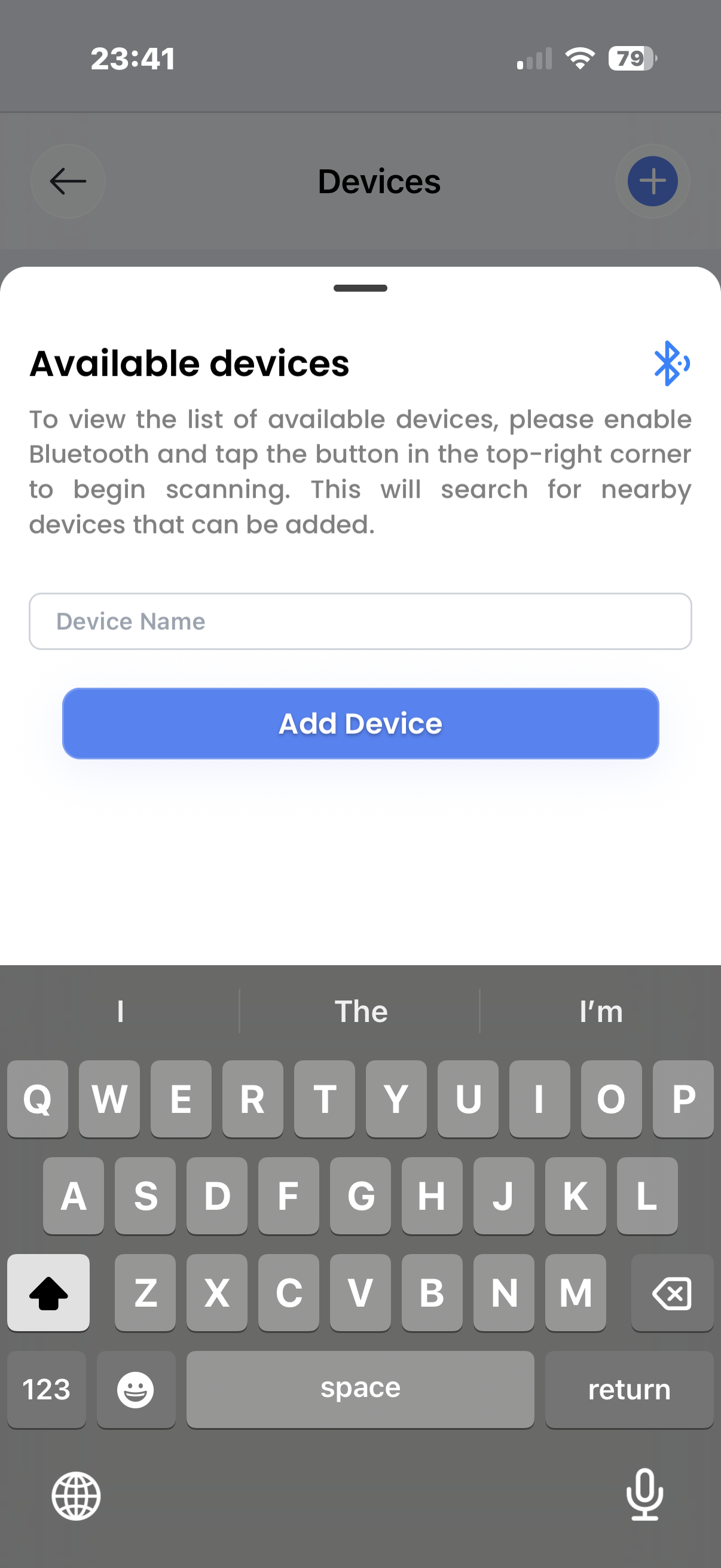
- Open the GatEvo App on your iPhone
- Tap + (top-right) on the Sites screen
- Enter a Site Name (e.g., customer name or location)
- Tap Save and open the newly created site
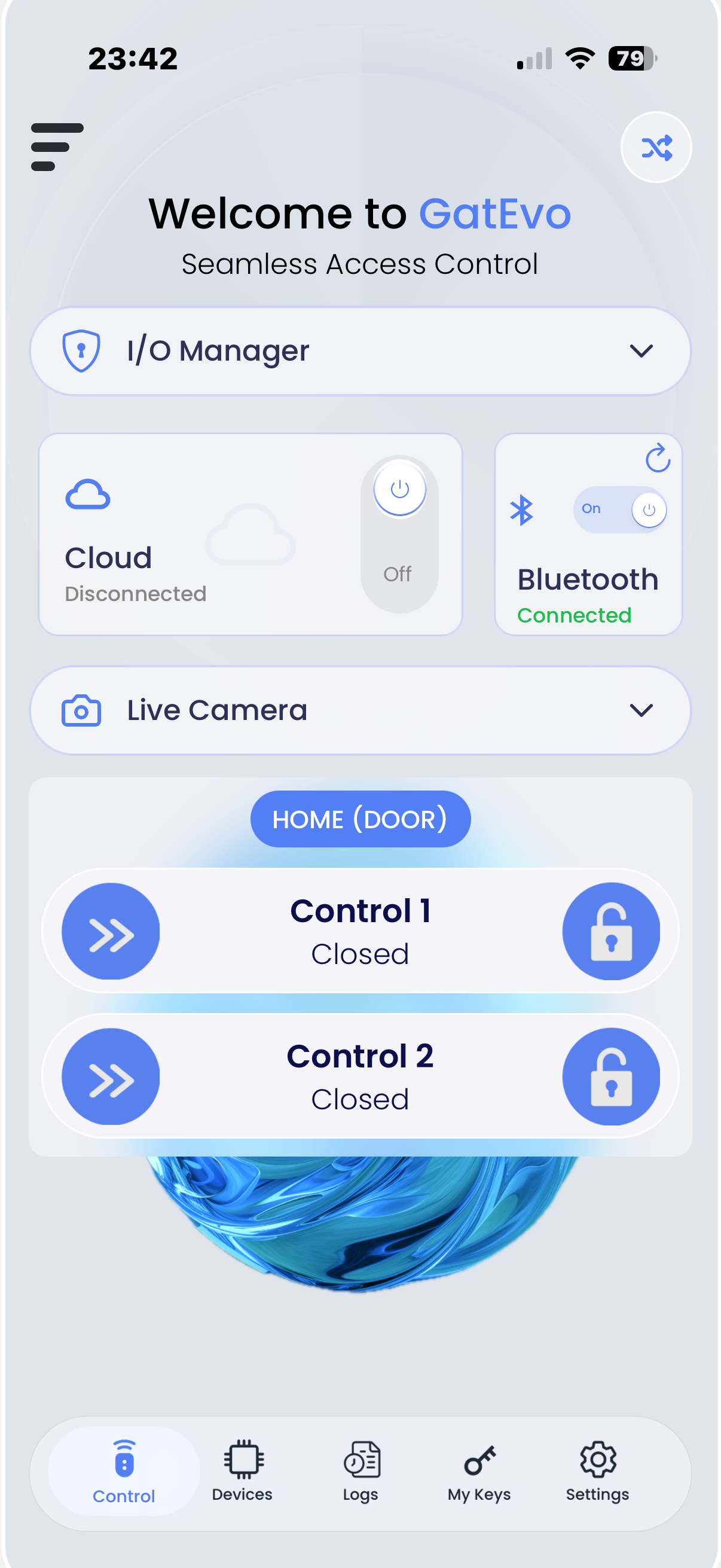
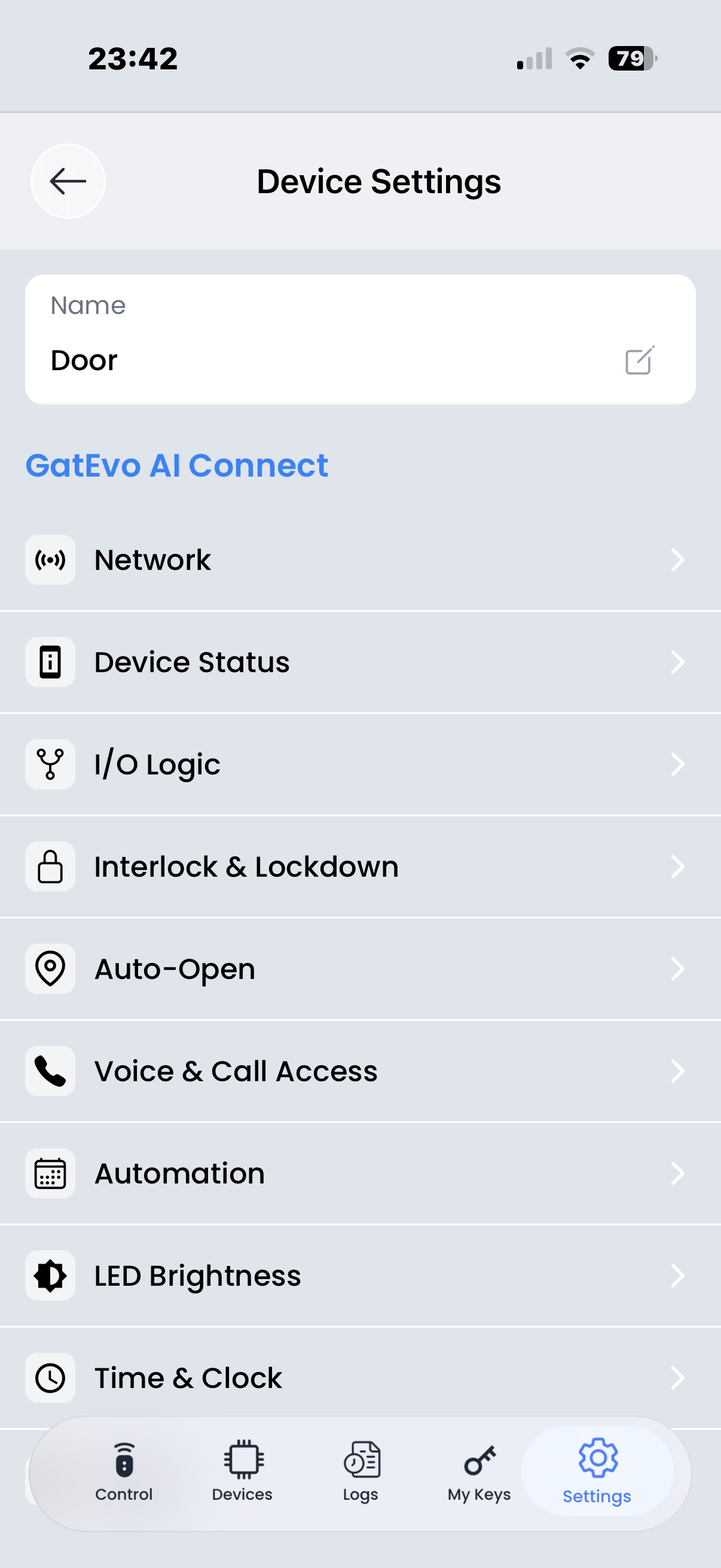
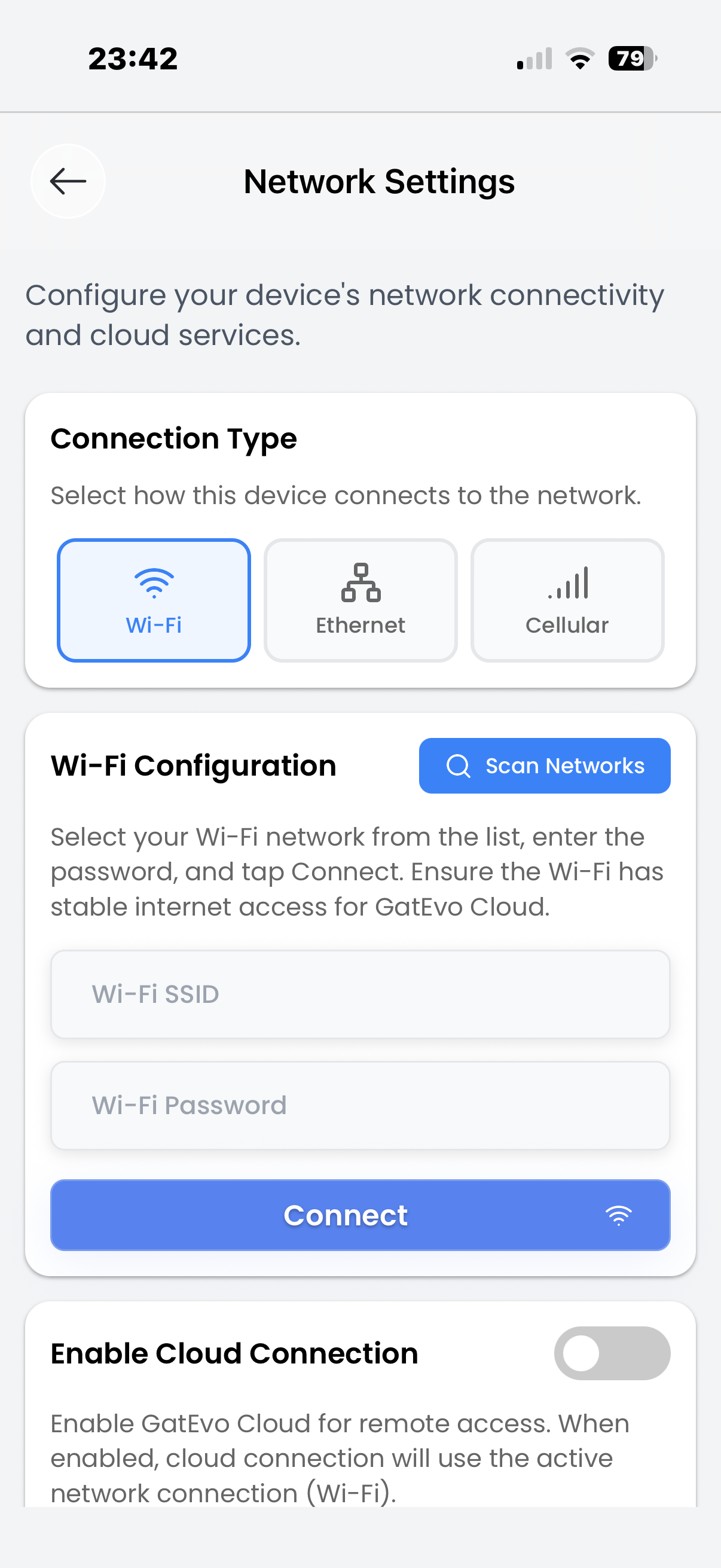
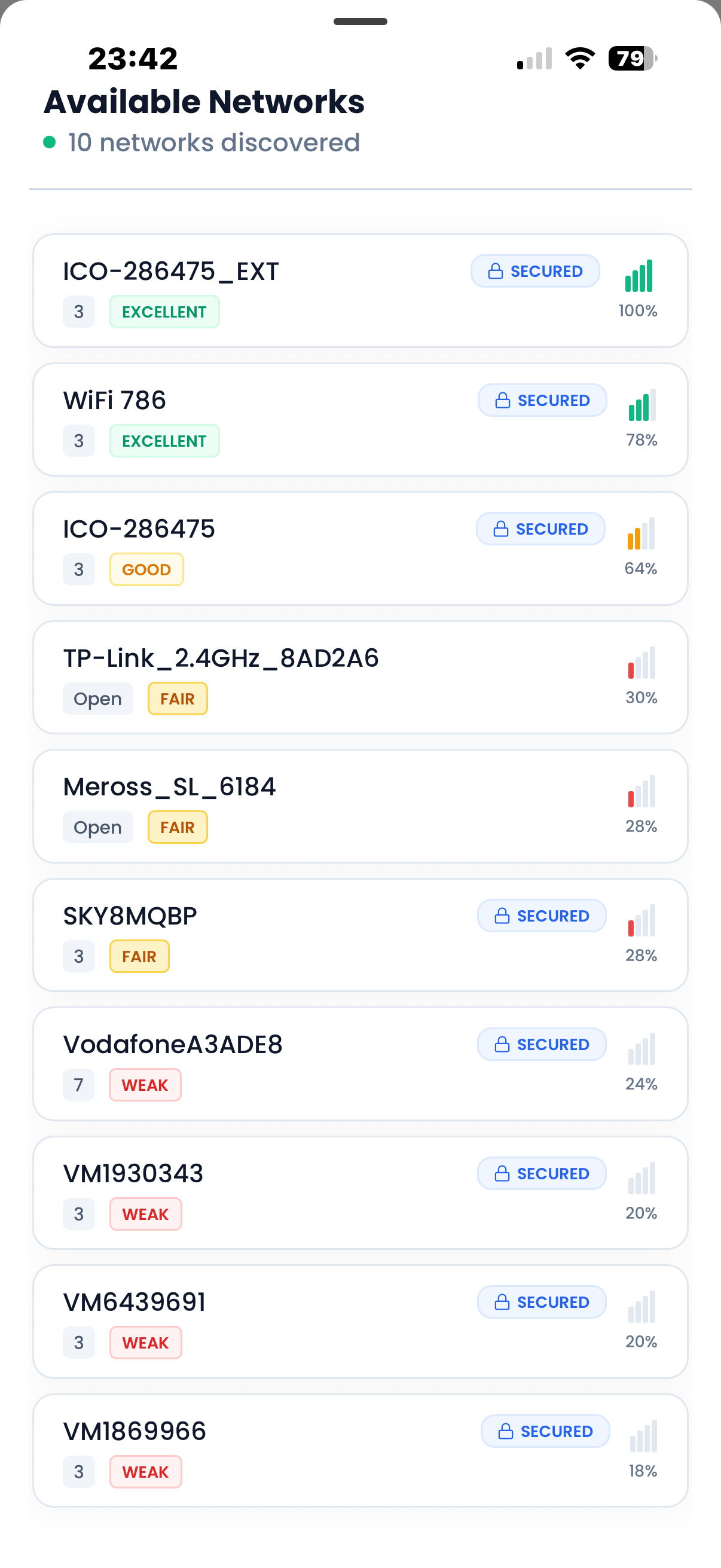
Installer Tips
Best practices for a smooth setup every time
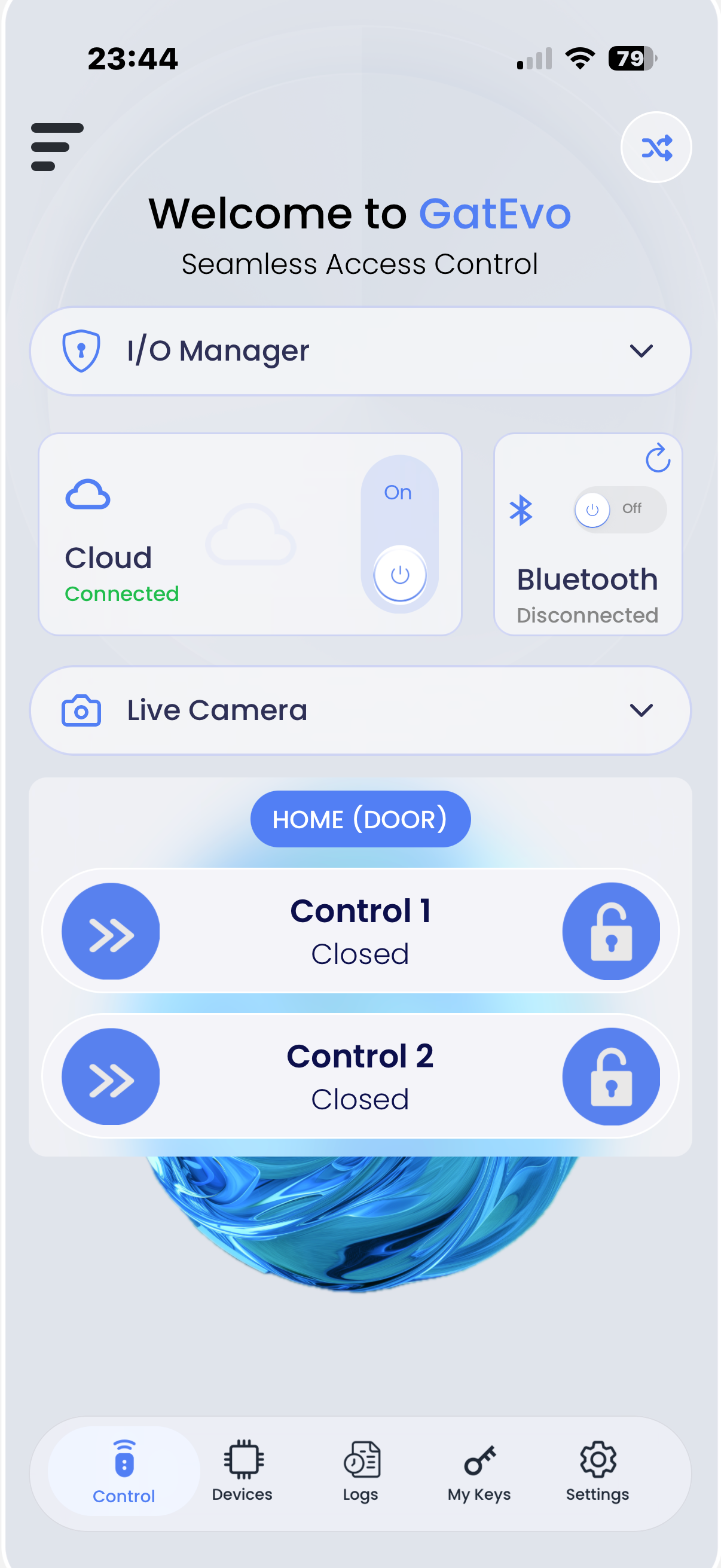
- 1 Test via Bluetooth first, then enable Cloud
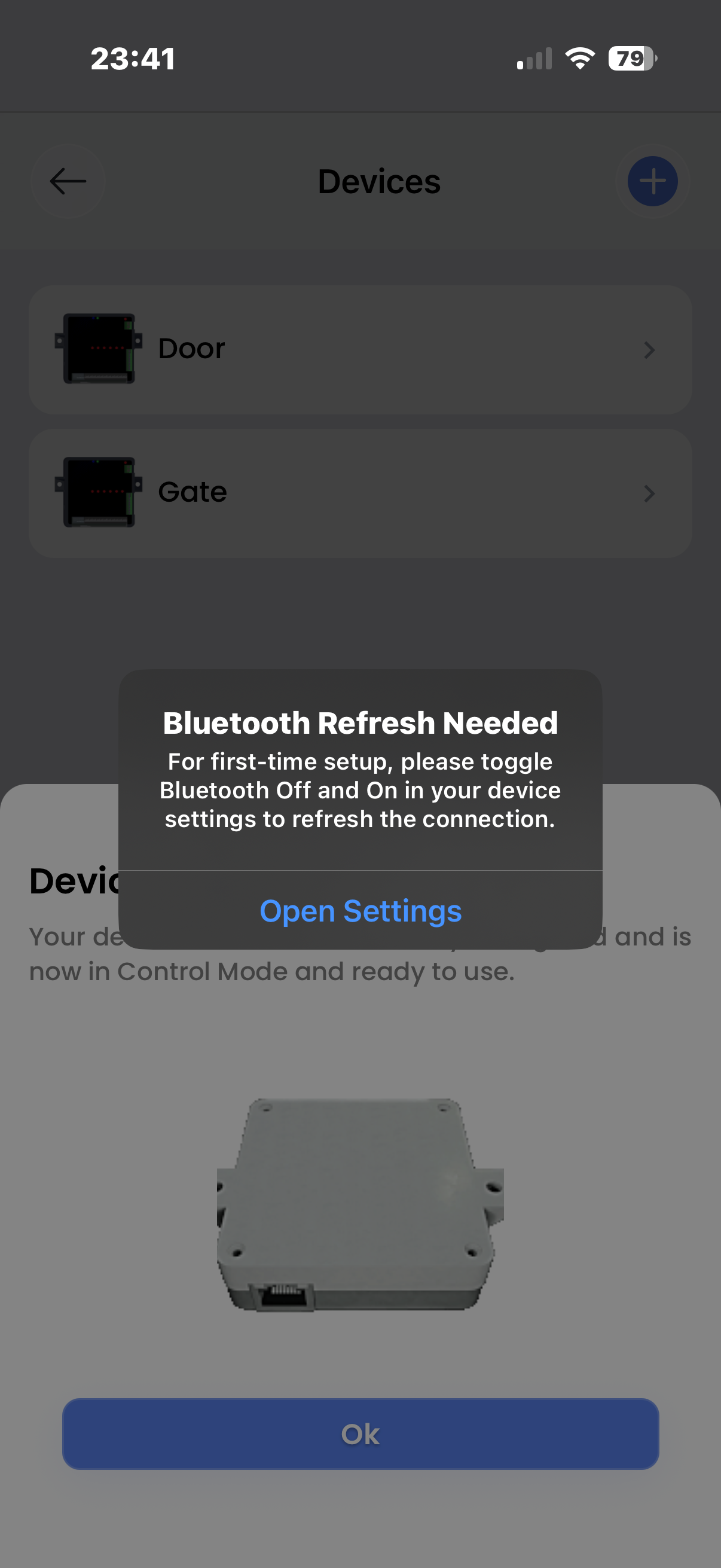
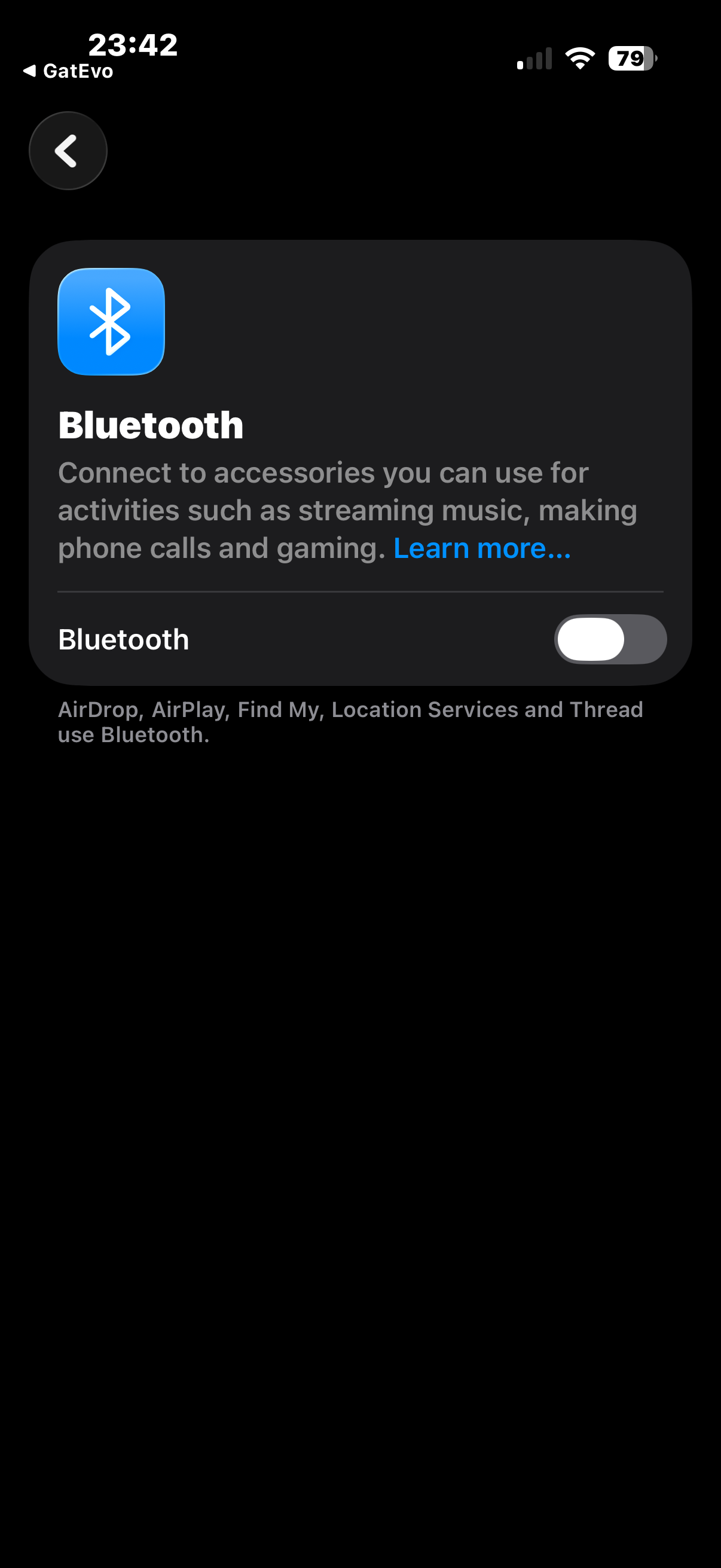
- 2 ALWAYS do the iPhone Bluetooth OFF/ON refresh from Settings (NOT Control Center) on first setup
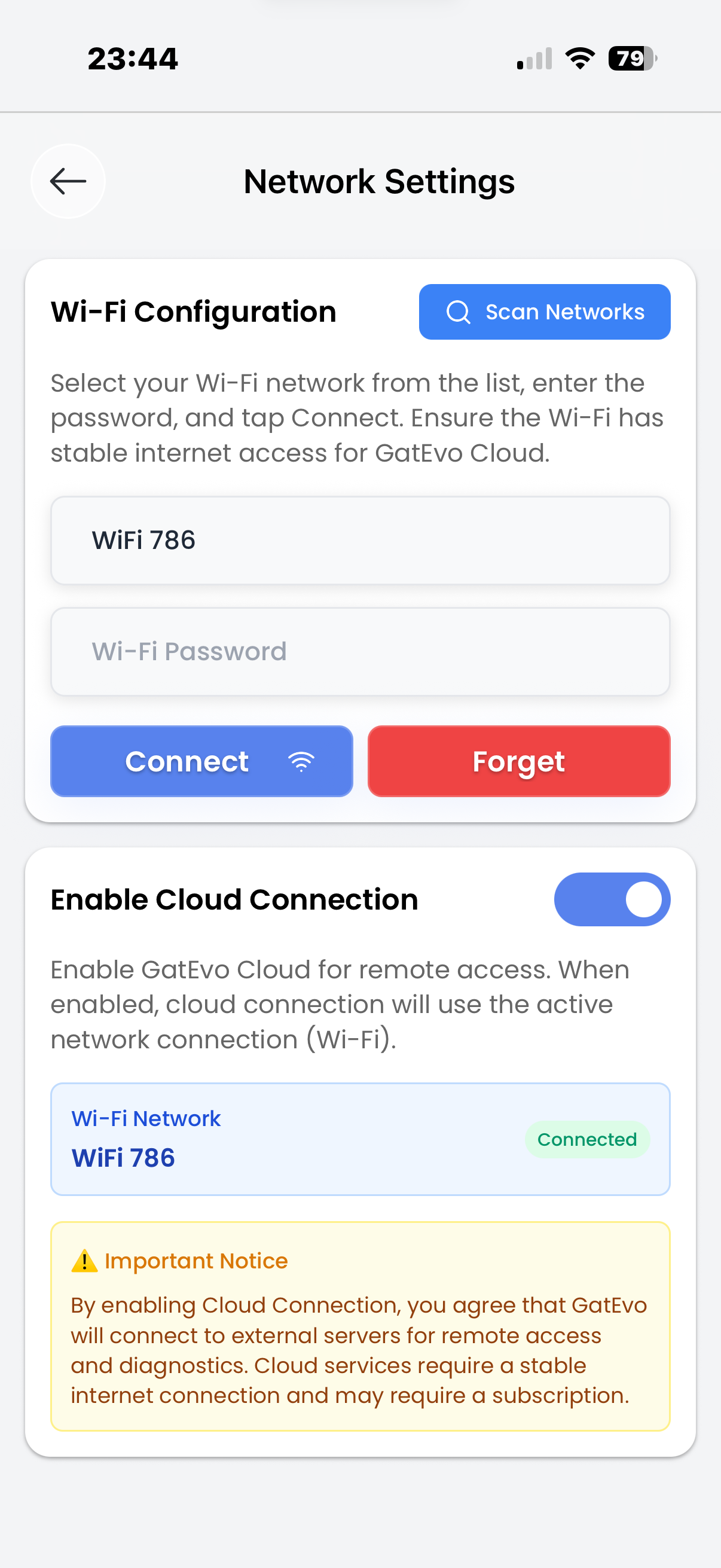
- 3 Use stable internet at the gate location for reliable cloud access
- 4 Bluetooth is mainly for setup and local servicing
- 5 Verify signal strength before selecting a Wi-Fi network
Troubleshooting
Common issues and how to resolve them quickly
- ! Device not appearing in scan: confirm power, enable Bluetooth from Settings, move closer, refresh scan
- ! "Connected but not working" on iPhone: toggle Bluetooth OFF/ON in iOS Settings (NOT Control Center), then return to app
- ! Control Center Bluetooth toggle does not fully turn off Bluetooth — it only pauses device scanning
- ! Cloud won't connect: confirm Wi-Fi password, verify internet is working, then enable Cloud again
- ! Poor cloud performance: check Wi-Fi signal strength and consider repositioning device or using Ethernet
Welcome On Board!